
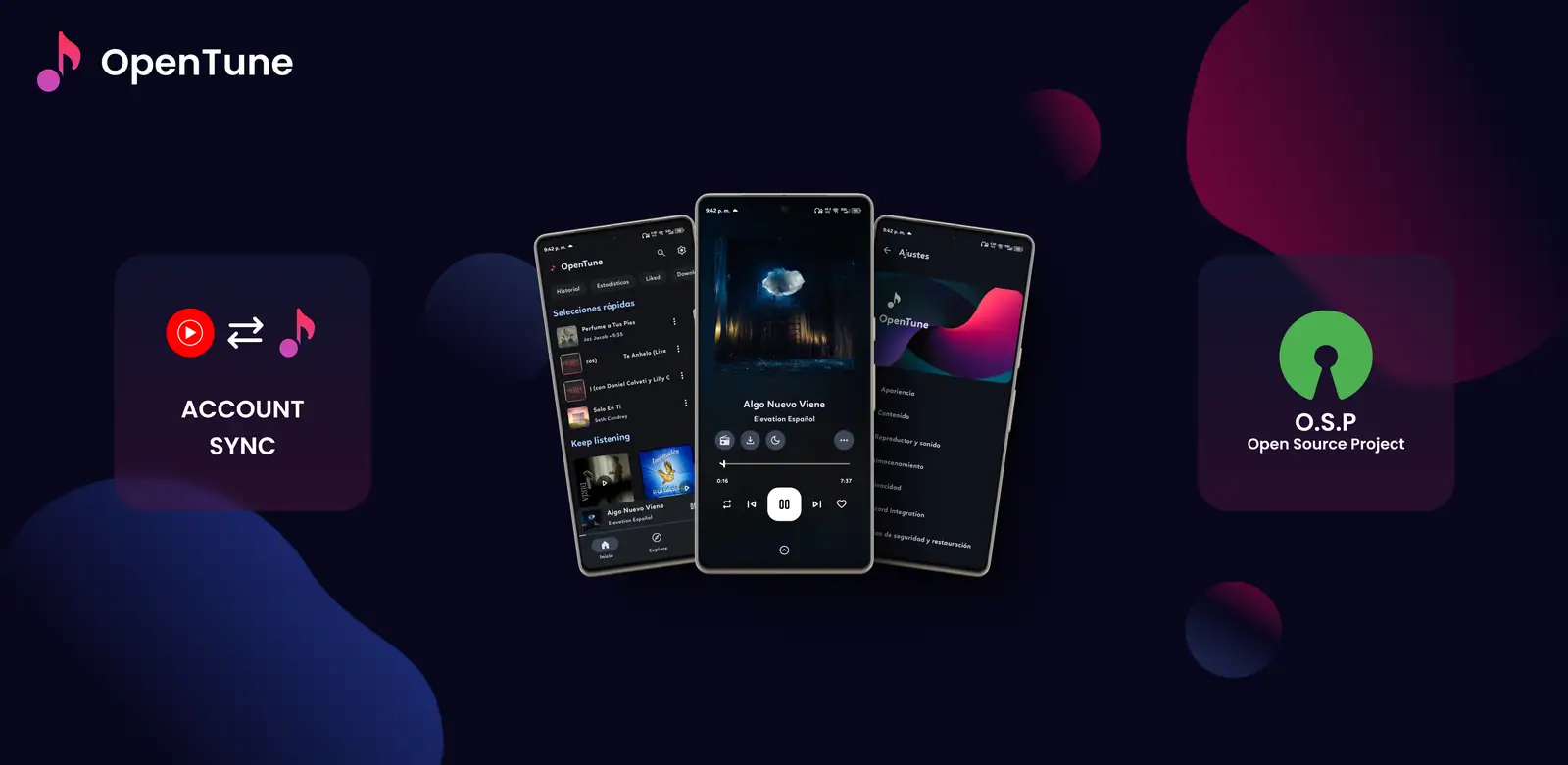
What the current OpenTune update changes
As checked on August 23, 2026, OpenTune 3.0.6 is the latest stable, non-draft and non-prerelease release returned by the official GitHub API. The attached universal APK is app-universal-release.apk, its published size is 28,077,468 bytes, and the tagged Android build uses versionCode 133, versionName 3.0.6 and minSdk 26. In practical terms, the package targets Android 8.0 or later.
The 3.0.6 release notes mention local music playback, persistent Canvas caching, in-app updates, library improvements and Material 3 Expressive changes. Those features are useful context, but a newer version number does not prove that every device-specific issue is fixed. Read the release notes and keep the official Release URL with the file you install.
- Current stable tag: 3.0.6.
- Official APK asset: app-universal-release.apk.
- Minimum Android version from the tagged build: Android 8.0.
- Official source: Arturo254/OpenTune on GitHub.
- The site does not mirror the APK file.
Before you update OpenTune APK
An APK update changes the installed package and may also change database migrations, player behavior or permission prompts. The safest preparation is simple: record the version you have, save anything you cannot recreate, and make sure the new file comes from the same official release path. Do not uninstall the old app just because a download page says update.
OpenTune uses a manual APK distribution path rather than the normal Google Play update channel. Android normally preserves application data when the application ID and signing certificate match, but neither the site nor Android can guarantee that every fork, repackaged file or debug build uses the same signing identity. A backup is especially important before a major version jump or a signature investigation.
- Write down the installed OpenTune version and Android version.
- Back up playlists, settings or local files that the app does not recreate automatically.
- Keep enough storage for the APK, installation process and artwork cache.
- Use the official GitHub asset, not a mirror or a modified APK.
- Keep the old installation until the new package has opened and played a test track.
| Check | What to confirm | Why it matters |
|---|---|---|
| Version | The tag is 3.0.6 or the release you deliberately chose | Prevents installing an old or prerelease build by mistake |
| Source | github.com/Arturo254/OpenTune/releases | Separates upstream assets from copied download pages |
| File | app-universal-release.apk and the published size | Catches incomplete or renamed downloads |
| Device | Android 8.0 or later for the current build | Avoids parsing and minimum-SDK errors |
| Data | Backups and original local audio are available | Makes rollback or reinstall less risky |
How to update OpenTune APK from the official Release
For most users, a manual OpenTune update is an in-place install. Open the release page, select the APK attached to the tag and let Android handle the package replacement. Do not use Source code ZIP or TAR files, and do not follow a countdown page that changes the host or asks you to install a downloader.
The exact wording of the Android installer differs across manufacturers. The important checks are stable: the file is an APK, the app name is OpenTune, the source is the official Arturo254/OpenTune Release and the package is newer than the installed version. If those facts do not line up, cancel and investigate before changing security settings.
- Open the current Release
Use the official GitHub Release linked from the site and confirm the tag, publication date and attached APK asset.
- Verify the file facts
Check app-universal-release.apk, the displayed size and the available SHA-256 digest before opening the file.
- Open the APK with Android
Use the browser download notification or a trusted file manager. Android should open its normal package installer.
- Choose Update or Install
Read the package prompt and continue only when it identifies OpenTune and accepts the existing installation.
- Test the updated app
Open search, playback, audio output, the library and any local-music or download workflow you rely on.
In-app updates and signature conflicts
The 3.0.6 release notes mention in-app updates, but an in-app prompt still needs the same source judgment as a browser download. Read the version shown by the prompt, confirm that it points to the upstream project and compare it with the Release page. A convenience prompt is not a reason to accept a random host or a modified package.
A signature conflict means Android cannot treat the new APK as a compatible update for the installed package. Common explanations include an APK from a different fork, a debug build, a repackaged download or a changed signing key. Do not immediately uninstall the current app: uninstalling can remove application data and may not solve the trust problem.
- Compare the installed app source with the new Release source.
- Check the package name and release asset before changing versions.
- Keep a backup before testing a different signing path.
- Use the official Release or tagged source when reporting a reproducible issue.
- Treat a signature error as a source mismatch until proven otherwise.
| Installer result | Likely explanation | Safer next step |
|---|---|---|
| Update succeeds | Package and signing path are compatible | Open OpenTune and test the features you use |
| Signature conflict | Installed and new APK have different signing identities | Verify both sources before uninstalling |
| App not installed | Android version, storage, signature or damaged file | Check device, file facts and source |
| In-app prompt fails | Network, release lookup or provider issue | Open the official Release manually |
| Downgrade blocked | Android protects a newer installed package | Back up and research the exact regression |
What to test after an OpenTune update
A successful Android installer only proves that the package was accepted. It does not prove that playback, provider requests, local files or audio output still work. Start with a small test rather than immediately restoring a large library or downloading many tracks. This makes it easier to separate an installation problem from a service or device problem.
Check the feature that motivated your update. If you updated for local music, confirm the media permission and play one file. If you updated for a player fix, test search, queue, background playback and the audio route. If one online provider fails while local playback works, the issue may be upstream rather than an APK installation failure.
- Open the app and confirm the displayed version.
- Play one online track and one local file when relevant.
- Check the queue, audio output and background playback.
- Review permissions without granting unrelated access.
- Keep the release notes and exact error text if a problem returns.
| After update | Small test | If it fails |
|---|---|---|
| Search and playback | Play one known online track | Check network, provider status and release issues |
| Local music | Open one file from a visible Music folder | Review media permission and rescan |
| Queue | Remove and restore one upcoming item | Check queue lock, shuffle and the queue guide |
| Audio output | Test speaker or Bluetooth | Compare Android output settings and another app |
| Downloads | Start one small transfer | Check storage and separate download errors from playback |
Fix common OpenTune update errors
The message App not installed is not a diagnosis. Android may reject a file because the device is too old, storage is low, the download is incomplete or the installed package has a different signature. Start with the least destructive checks: confirm Android 8.0 or later, redownload from GitHub, compare the size and inspect the package source.
If the app opens but playback stops, do not assume that reinstalling will fix an upstream change. Record the OpenTune version, Android version, content type, network state and exact message. Check the official Release notes and issues, then compare an online item with a local file. This evidence is more useful than repeatedly installing random older APKs.
| Error or symptom | First checks | Avoid |
|---|---|---|
| App not installed | Android version, storage, source and signature | Installing a modified mirror |
| Problem parsing package | Redownload and confirm Android 8.0+ | Lowering security controls |
| Signature conflict | Compare the installed and new APK sources | Uninstalling before a backup |
| Data disappeared | Check whether the app was uninstalled or data cleared | Assuming cache equals backup |
| Playback fails after update | Test network, provider, local file and audio output | Blaming the installer without evidence |
When to roll back or ask for help
Consider a rollback only when you can name the regression, the affected version is known and you have backed up important data. Android may block a downgrade over a newer package, and uninstalling can remove settings, cached artwork or offline content. The versions archive can help you locate an exact official tag, but it should not replace reading the Release notes.
For a reproducible issue, keep the APK source, version, Android version, device model and a short sequence of steps. Remove private playlists, account details and tokens from screenshots or logs. Use the official OpenTune GitHub issue flow for upstream bugs; use the installation guide for source permissions and basic APK errors.
- Back up before any uninstall or downgrade.
- Record the exact tag and asset filename.
- Test the smallest reproducible case.
- Separate source, Android and provider failures.
- Return to the latest stable release when the historical test is complete.
Official update sources
- OpenTune 3.0.6 GitHub Release - Release notes, published date and attached APK asset.
- OpenTune GitHub repository - Upstream source, issues and project ownership.
- OpenTune tagged Android source - Version-specific source and build configuration.
OpenTune update FAQ
How do I update OpenTune APK without losing data?
Keep the existing app installed and install the newer official APK over it when Android accepts the package and signing certificate. Back up important settings and local files first; an uninstall or data clear can remove app data.
What is the latest OpenTune update?
The latest stable release verified on August 23, 2026 is OpenTune 3.0.6. Check the official GitHub Release before every manual update because release facts can change.
Why does OpenTune say App not installed after an update?
Check Android 8.0 or later, free storage, the completeness of the APK and whether the installed app came from a different signing path. Redownload the official asset before changing system settings.
What does an OpenTune signature conflict mean?
Android cannot treat the new APK as a compatible update for the installed package. The files may come from different forks, a debug build, a repackaged host or different signing keys. Verify both sources before uninstalling.
Should I downgrade OpenTune if playback stops?
Only after checking the latest Release notes, network and provider behavior, and after backing up. A downgrade may be blocked or may remove data, and an older APK can fail against changed online services.
Are in-app OpenTune updates automatically trustworthy?
An in-app prompt is convenient but still needs source verification. Confirm the version and upstream Release path, and cancel if the prompt redirects to an unrelated host or asks for a modified downloader.