
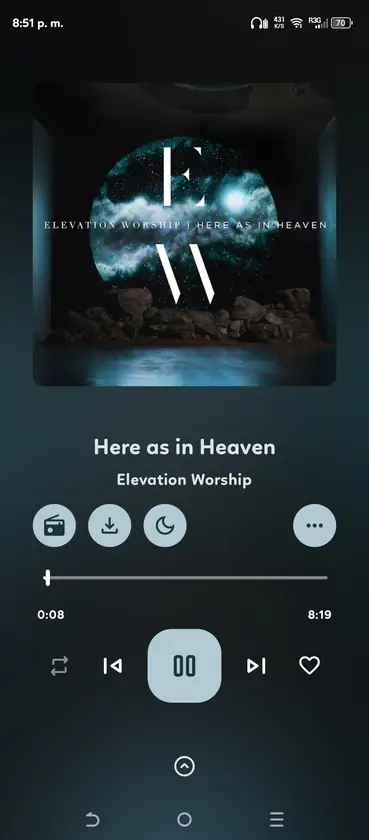
What the OpenTune playback queue contains
The playback queue is the ordered list that OpenTune sends to its media player. The queue header can show the current song, item count, duration, repeat mode, shuffle state and the infinite-queue setting. Tapping an upcoming song normally moves playback to that item; tapping the active song toggles play or pause.
This is a playback queue, not a file download list. Songs already downloaded for offline use can still appear in playback, but the separate Download queue tracks file transfers and download states. Keep those two workflows separate when troubleshooting a missing track.
- Current song and upcoming songs are shown in one ordered list.
- Repeat and shuffle change playback behavior without being the same as reordering.
- The queue can display its total item count and duration.
- Infinite queue can request more online items when the current list runs low.
- Local files may have fewer online actions than YouTube-backed songs.
| You want to… | Use… | Do not confuse it with… |
|---|---|---|
| Change the next song | Playback queue | Download queue |
| Remove one upcoming track | Swipe-to-dismiss on the queue item | Deleting the source playlist |
| Change the order | Unlock and drag the queue handle | Shuffle mode |
| Get more online suggestions | Start radio or infinite queue | Playing a local file offline |
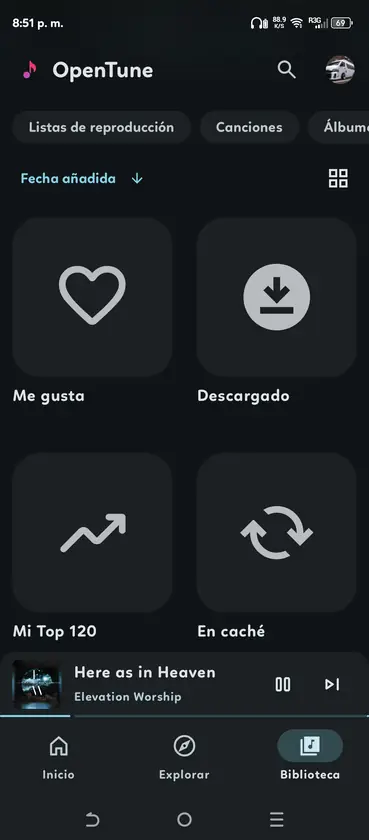
How to remove a song from the OpenTune queue
To remove one item, open the expanded player queue and swipe the track from either side until it is dismissed. OpenTune removes that media item from the player and displays a short Undo action. Use Undo immediately if you removed the wrong song; the action restores the item and its position as part of the same queue session.
To reorder tracks, first unlock queue editing if the queue is locked. Drag the handle beside an item to its new position and release it. OpenTune applies the new order to the media player; shuffle mode uses a separate shuffle order, so the visible order and the next played item may not match while shuffle is active.
- Expand the player before trying to swipe a queue item.
- Swipe the track you want to remove, not the current player sheet.
- Choose Undo from the snackbar if the removal was accidental.
- Unlock editing before dragging when the queue is locked.
- Turn off shuffle when you need the next item to follow the visible order.
- Open the queue
Tap the current player or its queue area and expand the queue until the upcoming tracks are visible.
- Dismiss the unwanted track
Swipe the item from either direction. The track is removed from the playback session rather than deleted from your library.
- Undo when needed
Use the short Undo action shown after the removal before continuing to edit the queue.
- Unlock and drag to reorder
If editing is locked, unlock the queue, then use the drag handle to move a song and release it at the desired position.
What Start radio and infinite queue do
Start radio is a provider-backed way to continue from a song. In the official source, a YouTube queue can be created from the current song's watch endpoint and then request continuation pages. In practical terms, radio asks OpenTune to find a stream of related online tracks; it is not the same as manually adding one known song to the end of the queue.
Infinite queue is a player preference that lets OpenTune load more items when the current queue can continue. It can be useful for long listening sessions, but it depends on the provider returning another page. If the connection is offline, the account is unavailable or the current item is local, the queue may stop instead of filling indefinitely.
- Start radio is based on an online song and provider response.
- Infinite queue controls whether OpenTune requests more queue pages.
- Neither feature guarantees that every provider result will play.
- Local content can play without the network but may not expose provider radio.
- A short queue can be normal when continuation data is unavailable.
| Feature | What it changes | Main dependency |
|---|---|---|
| Manual queue | Adds or reorders known items | Your current player session |
| Start radio | Builds a related online continuation | Provider endpoint and network |
| Infinite queue | Loads another page when available | Continuation data and player setting |
| Download queue | Tracks offline file transfers | Storage and download service |
Fix common OpenTune queue and player-control problems
If a track seems impossible to remove, confirm that you are looking at the expanded playback queue rather than the library or download screen. A locked queue hides editing controls, while shuffle can make a correctly reordered list appear to play out of order. Restarting playback can also create a new queue from the item you selected.
If Start radio does nothing, test a normal online song first, check the connection and wait for the player to request the next page. For a local file, use the local-music guide: content:// tracks do not automatically have the same online artist, lyrics, radio or provider actions.
- Check queue lock before looking for the drag handle.
- Disable shuffle while verifying a manual order.
- Test radio from an online song before diagnosing local playback.
- Separate playback errors from download errors.
- Record Android version, OpenTune version, song type and the exact player message before opening an issue.
| Symptom | First check | Likely boundary |
|---|---|---|
| Swipe does nothing | Expanded queue and queue lock | Editing is disabled |
| Order looks wrong | Shuffle mode and current index | Shuffle uses a separate order |
| Radio stops | Network and online test song | No continuation response |
| Local song has no radio | Content type and local-music limits | Provider-only action |
| Download is stuck | Download queue and storage | Not the playback queue |
Official sources
- OpenTune queue implementation - Official 3.0.6 source for swipe removal, Undo, queue locking, drag reordering and infinite queue controls.
- OpenTune YouTube queue implementation - Official source for queue continuation and creating a queue from a song watch endpoint.
- OpenTune player menu - Official player actions and playback controls in the 3.0.6 source tree.
- OpenTune 3.0.6 release - Verified release notes, APK asset and version context.
OpenTune queue and radio FAQ
How do I remove a song from the OpenTune queue?
Expand the playback queue and swipe the unwanted item from either side. OpenTune removes it from the current player session and shows a short Undo action.
Can I undo a queue removal in OpenTune?
Yes. Use the Undo action in the snackbar immediately after removing the song. The item is added back to the queue session at its previous position when the action is available.
How do I reorder songs in the OpenTune queue?
Unlock queue editing if it is locked, then drag the handle beside a song to a new position. Turn off shuffle while checking the visible order.
What does Start radio mean in OpenTune?
Start radio asks the online provider for a related continuation based on the current song. It is different from manually adding a known track and requires a compatible online response.
Why does the OpenTune queue stop instead of loading more songs?
Infinite queue needs continuation data from the provider. Check that it is enabled, test an online song and verify the network before assuming the APK is broken.
Is the OpenTune download queue the same as the playback queue?
No. The playback queue controls what plays next; the download queue tracks offline file transfers. A stuck download should be diagnosed separately from a missing playback item.
Why is radio unavailable for an OpenTune local song?
Local content is a device file rather than an online provider item. It can play locally, but provider actions such as radio, artist pages or online metadata may not be available.