
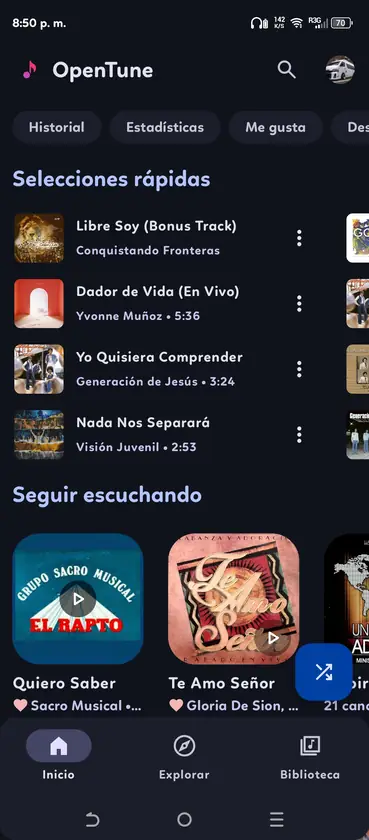
OpenTune Not Working? Start With the Symptom
Diagnose one symptom at a time. If one track fails but others play, note that item. If search, loading and playback all fail, test the network. If the app closes at launch, check its version, Android compatibility and storage.
Note whether the problem began after an app, Android, permission or network change. That timing is more useful than reinstalling repeatedly and helps separate local music access from online playback.
- One track fails: try another item and keep its error.
- Online content fails: compare Wi-Fi with mobile data.
- Local files disappear: check access and selected folders in the local music guide.
- App will not open: restart and check free storage.
| What you see | First check | Next useful step |
|---|---|---|
| One song will not play | Try a different track | Keep the item title and exact error |
| Search does not return results | Test another query and network | Check whether only one spelling fails |
| OpenTune closes at launch | Restart and check free storage | Record Android and app versions |
| An APK will not install | Confirm package source and Android version | Use the dedicated installation guide |
OpenTune Not Playing Music: Check One Track, Then the Connection
Start with a track that previously worked or a different item from the same search. If only one item fails, repeat the test later and preserve its title, artist and displayed error; an unavailable source can affect one item without proving that the whole app is down. If every online track fails, check whether other apps can reach the internet and whether the device is behind a captive Wi-Fi sign-in page.
Next, compare a stable Wi-Fi connection with mobile data when your data plan permits it. A result that changes between networks points toward connectivity, filtering or DNS conditions on the first network. Do not disable a security control permanently just to make one test pass. If a VPN, private DNS or content filter is active, record that fact and make only a temporary, deliberate comparison that you can reverse.
Android can also restrict background network use or pause an app to save battery. Open the system settings for OpenTune and review network access, battery use and any data-saver exception available on that Android version. The wording and menu path vary by phone maker, so use the Settings search field rather than following an exact path written for a different device.
- Compare two tracks
Try a second item before changing settings. Note whether the failure affects one source, one title or every online item.
- Compare network conditions
Test a known working connection and confirm the device has completed any Wi-Fi sign-in page.
- Review Android restrictions
Check that OpenTune is allowed to use data and is not being aggressively paused in the background.
- Restart once and retest
Close and reopen the app, then repeat the same test. Avoid changing several permissions at the same time.
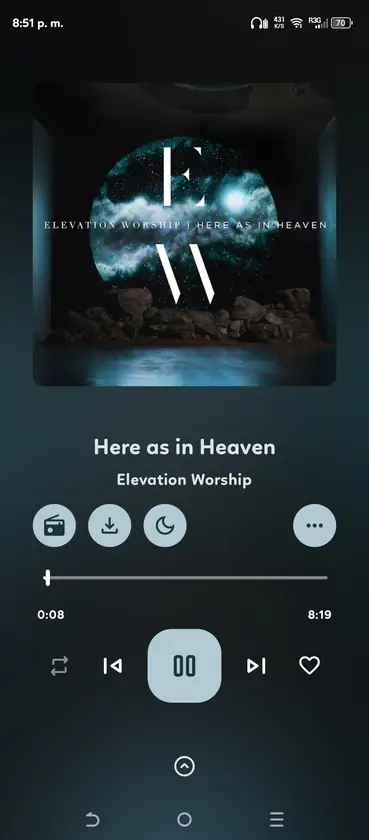
OpenTune Search Not Working: Separate a Query Problem From a Network Problem
If OpenTune search is blank, slow or returns no matches, try a short query for a well-known title and then a second query with a different spelling. This tells you whether the problem follows one phrase or affects search generally. Search results can vary with catalog availability, spelling and source behavior, so a missing result is not by itself proof that your account or installation is broken.
Check that another app can load fresh content. If search works on a different network, investigate the original network or its filters. If local files still play while search stays empty, report those as separate observations.
For one failed query, restart OpenTune once and check whether Android restricts its network access. Look for a matching project report before reinstalling, and do not expose private account or playlist details.
- Compare two queries
Note whether one phrase or every search fails.
- Check the connection
Load fresh content elsewhere; compare networks if practical.
- Restart and record
Reopen once, then note the time and exact message.
When OpenTune Keeps Crashing or Will Not Open
If OpenTune closes during launch, start with reversible checks. Restart the device, close other resource-heavy apps and confirm that Android has enough free storage to run and update applications. Then check the installed app version and Android version against the information on the release page. Do not assume that a cache or data reset is harmless: app data can include settings or library state that you may want to keep.
If the failure followed an update, note whether installation finished and whether Android showed a signature or parsing message. A different signing source may not install over the existing app; see the dedicated install and update guides for those cases.
If restarting does not help, try a reversible app control such as force stop. Cache options vary by device. Do not clear storage, clear data or uninstall until you understand what could be removed and have considered a backup.
- Restart and retest
Change no other setting during this check.
- Check storage and compatibility
Compare Android requirements with release information.
- Choose reversible controls
Review cache or data effects before acting.
- Record what happened
Note the message, timing and Android version.
Install, Update, Download Location and Account Problems
An APK that fails before installation is different from an installed app that cannot play music. Check its source, free storage, Android compatibility and the exact installer message. Do not rename the package or use a random mirror; the installation guide covers permissions, parsing and signing conflicts.
If an update will not install, confirm both packages use a compatible signing source and that the download completed. Back up important data before uninstalling or downgrading. Use release history to identify the installed version and the update guide for recovery steps.
A browser-downloaded APK is usually in Android's Downloads list or the file manager's Downloads folder. It is separate from offline music and scanned local files; use the local music guide for file permissions and library behavior.
For sign-in errors, describe the failing screen and step. This independent site cannot access your account. Never post passwords, codes, recovery phrases, cookies or tokens; follow only the upstream project's documented account flow.
- Install failure: use the dedicated APK installation steps rather than repeating an uncertain download.
- Update failure: check the package source and signature before removing the installed app.
- Downloaded APK missing: search the device's Downloads list; do not confuse it with in-app music.
- Account prompt: record the visible behavior, but keep credentials and private codes out of reports.
What to Include in a Useful OpenTune Problem Report
If the same issue remains after these checks, report the smallest reproducible case. Include the OpenTune version, Android version, device model, whether the issue affects one track or all tracks, the network comparison you tried and the exact visible error. Describe the taps or steps that lead to the failure in order, then note what you expected and what happened instead.
Use the upstream project's issue tracker for software defects or feature behavior. Search the current reports for a matching symptom before opening a duplicate, and keep the report factual. A screenshot can help if it does not expose an email address, private playlist, access token or other personal information. Remove sensitive values before attaching logs, and never post account passwords or one-time codes.
Separate observed results from guesses, and say which test changed the outcome so maintainers can narrow the cause.
- List device versions
Include app, Android and device model.
- Give reproduction steps
State the smallest sequence and exact error.
- Report comparisons
Say which tests changed or did not change the result.
- Redact personal data
Remove account details, tokens, cookies and private playlists.
Project and support sources
- OpenTune upstream issue tracker - Use the upstream repository to review or report reproducible software issues.
- OpenTune upstream repository - The project repository is the first-party reference for source code and release information.
OpenTune Not Working: Frequently Asked Questions
Why is OpenTune not playing one song?
Test a second track first. If other items play, record the failed title and exact error; one unavailable item does not prove that every playback feature is down.
What should I check when OpenTune search is blank?
Try two short queries, confirm another app can load fresh content, and compare networks if practical. Note whether only one spelling or every search fails.
Should I clear OpenTune data to fix a crash?
Not as a first step. Restart, check storage and try reversible app controls first. Clearing storage or uninstalling may remove data, so review backup needs before proceeding.
Where is an OpenTune APK downloaded on Android?
Check the browser's Downloads list or your file manager's Downloads folder. This is different from local music files or content managed inside an app.
Can OpenTune help install or sign in to my account?
This independent help site cannot access your device or account. Follow the upstream project's documented flow and never share passwords, codes, cookies or tokens in a public report.
What details should I send with an OpenTune bug report?
Include app and Android versions, device model, exact steps, the visible error and what changed after each test. Redact account details, private playlists and authentication data.